Troubleshoot roles and role models
Role troubleshooting
Trace a user's roles to the groups they provide, then resolve assignment, identifier, and scope issues.
Trace a user's roles and groupsDirect link to Trace a user's roles and groups
Use Group Membership Reports to answer which roles a user receives, which groups those roles provide, and which membership changes NIM would make. Have the user's target-system account identifier and the group you are investigating ready so you can distinguish accounts or groups with similar names.
Inspect the model used for the assignmentDirect link to Inspect the model used for the assignment
- Go to Output → Roles → Role Models.
- Open the active model when investigating the assignments used by production jobs. Open the development model when reviewing a proposed change, or a history model when comparing an earlier configuration.
- Select Group Membership Reports.
The report evaluates one model at a time. A role in development does not affect production until that model is activated and a job processes its membership changes.
Confirm the report is reliableDirect link to Confirm the report is reliable
- Open Status and read the evaluation messages.
- Resolve any errors before relying on the membership results. The summary Success, result data available can appear even when the messages contain an error.
- After correcting the affected configuration, select Evaluate and check Status again.
Identify the user's assigned rolesDirect link to Identify the user's assigned roles
- Open Memberships and locate the user's target-system account in Members.
- Select that member. NIM highlights the associated Roles and Groups.
- Record the highlighted roles and groups, including any unexpected assignments or missing access.
If the account is missing, inspect the expected role's Based on Filter, its filter parameters, and the returned target account identifier. Confirm that the filter includes the account and that the role item's member-ID binding uses the correct identifier column.
Find which roles provide the groupDirect link to Find which roles provide the group
- Select each role identified for the user. NIM highlights all members and groups associated with that role.
- Compare those highlighted groups with the user's group results to identify what each role provides.
- For an unexpected group, select the Group to highlight its associated roles and members. Compare those roles with the user's assigned roles.
- Inspect the relevant role's configuration, including its Based on Filter, parameters, role items, and selected groups.
A group can be provided by more than one role. Check every role associated with the user and that group before changing an assignment; removing one role may leave another role providing the same group.
Selecting a role shows all of its associated members, not only the user you started with. Keep the user's account identifier in view when comparing the results.
Check what NIM would changeDirect link to Check what NIM would change
- Open Actions and locate the rows for the user's account and the group being investigated. Check the source and target details to confirm the correct account and system.
- Review add and remove actions to see the pending changes.
- For not added or not removed, read the reason in parentheses. Account not included means the account is outside the include scope; account excluded means it is in the exclude scope.
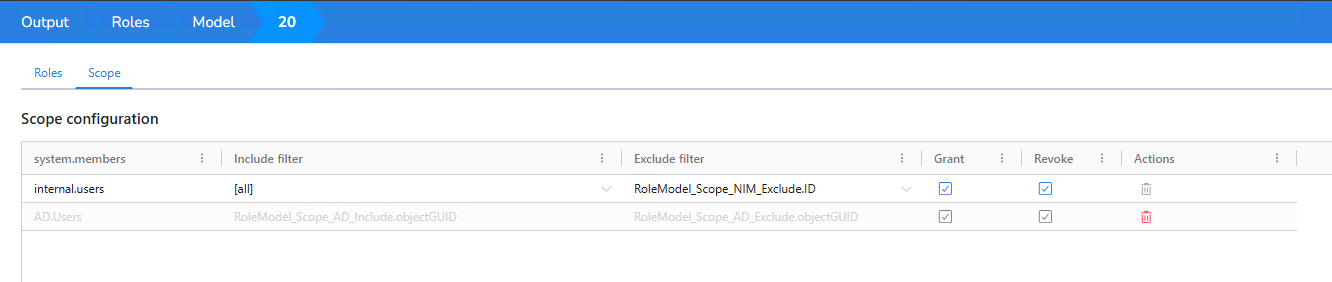
- Review the model's system scope, include and exclude filters, and Grant / Revoke settings when the expected change is missing or skipped.
The Memberships tab describes the evaluated role assignments; Actions previews changes relative to the collected target data. Opening or evaluating the report does not change group memberships. To investigate whether a change was applied, also review the relevant job, its results, and the target-system membership data.
Validate the correction before applying itDirect link to Validate the correction before applying it
- Make configuration changes in the development model. Correct the role filter, member-ID binding, selected groups, or scope identified in the earlier steps.
- Select Evaluate, confirm Status has no errors, and repeat the member → role → group checks.
- Review Actions for unintended additions or removals affecting other accounts.
- Once the results are correct, follow the role model activation guidance. The relevant job must process the active model through its
groupmembershipoperation to apply the changes. - After execution and collection of the target-system data, verify the user's actual group memberships and review the report again.
Record the model version, member identifier, role name, target system, group identifier, and action or skip reason. This gives you a concrete path to compare after a correction or include in a support request.
TroubleshootingDirect link to Troubleshooting
Choose the card that matches the issue you see. After correcting a filter or role item, review the validation report and confirm the expected role or scope is available.
A system is unavailable for a role itemDirect link to A system is unavailable for a role item
Problem
A system is unavailable for a role item
Likely cause
The selected filter does not return the system's unique account identifier, or the system has no appropriate N-N relation between its users and groups or assignable role items.
Resolution
- Verify that the filter returns the unique account identifier, such as
Users.objectGUIDfor Active Directory orUsers.IDfor Google Workspace. - Verify the N-N relation between users and the groups or items the role assigns.
- Reopen the role item and check whether the system is available.
Member ID is blank in the reportDirect link to Member ID is blank in the report
Problem
Member ID is blank in the report
Likely cause
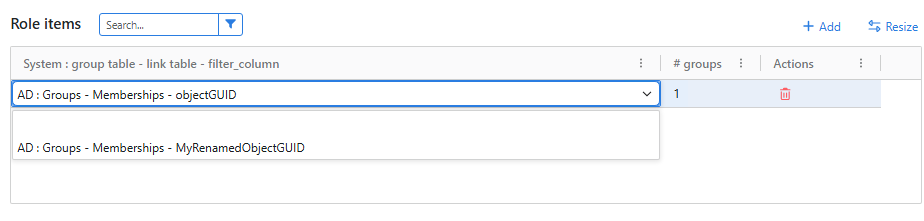
The role filter no longer returns the target user identifier, or the identifier column was renamed and the role-item binding still points to the old name.
Resolution
- Confirm the role filter returns the target user identifier.
- If the column was renamed, open the role-item bindings and select the renamed column.
- Run the report again and confirm Member ID is populated.
A system is missing from role scopesDirect link to A system is missing from role scopes
Problem
A system is missing from role scopes
Likely cause
The system is not used by a role item, or a role filter for that system is invalid.
Resolution
- Confirm the system appears in at least one role item.
- Review the validation report and correct any role-filter errors.
- Reopen role scopes and check for the system.
A role scope is unavailableDirect link to A role scope is unavailable
Problem
A role scope is unavailable
Likely cause
The scope's role items were removed, or its related filters are missing or invalid.
Resolution
- Restore the required role items and valid filters.
- Review and resolve any validation errors.
- Reopen the scope and confirm it is available.