Job Guard Notification Tutorial
When a the number of tasks in a job item equals or exceeds its defined threshold, NIM does not execute any of that job item's tasks. In this event, it is useful to send a notification to NIM administrators so that they can examine the job and either adjust the threshold, or fix any potential data issues. Follow the steps in this tutorial to set up this notification.
Create a Notification Template
Before notifications can be sent out to administrators, an email template must be created that will display information about the job thresholds. This email template can be used over and over again for any number of jobs where threshold notifications are necessary.
Navigate to Events > Templates
Click the +Add button to add a new template.
Name the template "Job-Guard-Notification" and click Create.
In the Notification Event dropdown, select a
job-guardevent for one of your jobs.Provide a valid From and To address, along with a suitable Subject.
In the email body, click the + button and add the event > job_guard_tasks variable.
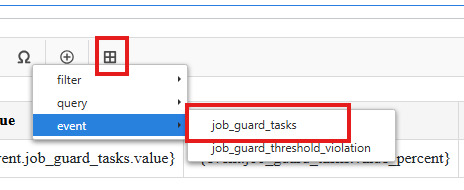
In the email body, click the + button and add the event > job_threshold_violation variable.
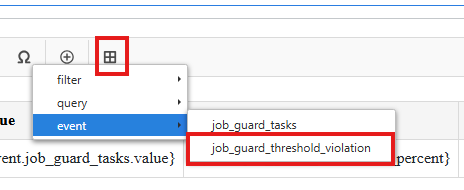
Click Save.
Create a Notification Action
Navigate to Events > Actions
Click the +Add button to add a new action
In the Event type dropdown, select
job-guard.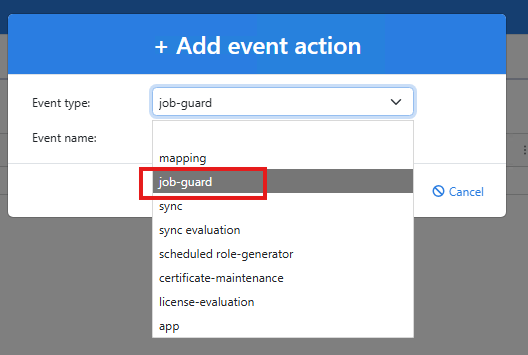
In the Event name dropdown, select the job you want this notification to apply to.
Click Add. A new row will be appended to the event actions table.
In the Template dropdown of the new row, select
Job-Guard-Notification.Uncheck the Success checkbox so this notification is only sent when part of the job fails to run due to the thresholds being met or exceeded.
Click Save.