Gather Additional User Input
During the onboarding process, it may be useful to gather additional information from the end user. Such information may include their preferred name, their birth date, home address, etc. NIM's onboarding process can be configured to prompt the user for arbitrary data, which can then be fed into target system actions in order to update account attributes, insert database records, and more.
If you are not familiar with the onboarding process in NIM, or do not have an onboarding profile configured, please go through the onboarding tutorial to set up an onboarding profile.
To gather additional input during your onboarding process, follow these steps and examples:
The first step is to add one or more forms to your onboarding profile that will be used to gather data.
Edit the onboarding profile that you wish to customize.
Under the Configuration tab, click the +Add button to add a new onboarding profile form.
Set the Form Name to either
QuestionText,QuestionDate, or another form that you has been configured to gather user data.Important
If you do not see these options underneath the Form Name dropdown, please download and install the latest version of the onboarding app from our github repository.
Set the Form Variable to
vAnswer.Drag the form in between the
Confirmform and whatever form has the Execute option selected (this is usually thePasswordform), as shown below.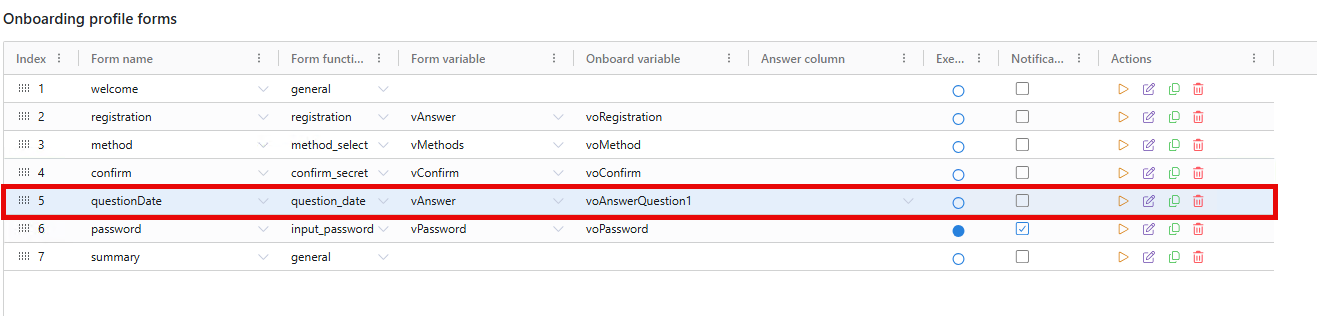
Under Form Contents, change the default placeholder values to suit your desired use case. In this example, we are prompting the end user to provide their start date. You can preview your changes by clicking the
 button next to the selected form.
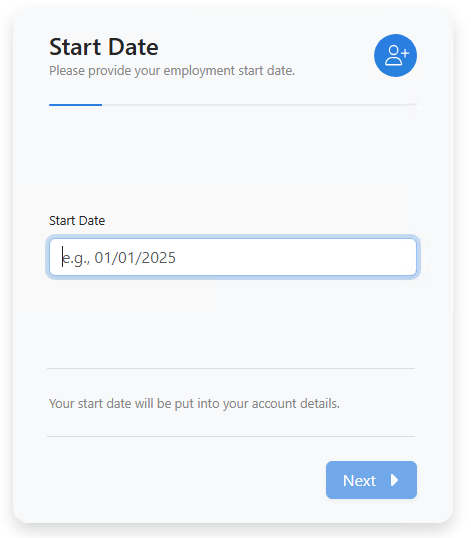
When you are satisfied with your changes, click Save.
Now that the form is set up to gather input from the end user, you need to tell NIM what to do with the supplied data. The following steps will show you how to put the supplied value directly into an attribute in a target system.
Navigate to the Onboarding Actions tab.
Select an existing target system action, or click +Add to add one.
Note
If you add a new target system action, be sure to configure its required properties, such as the user account's unique identifier. For example, objectGUID for Active Directory.
Under Action Specification, choose the attribute where you would like to store the user input. Set its Value Source to variable, and select the variable assigned to the form you added in previous steps (in this case,
voAnswerQuestion1).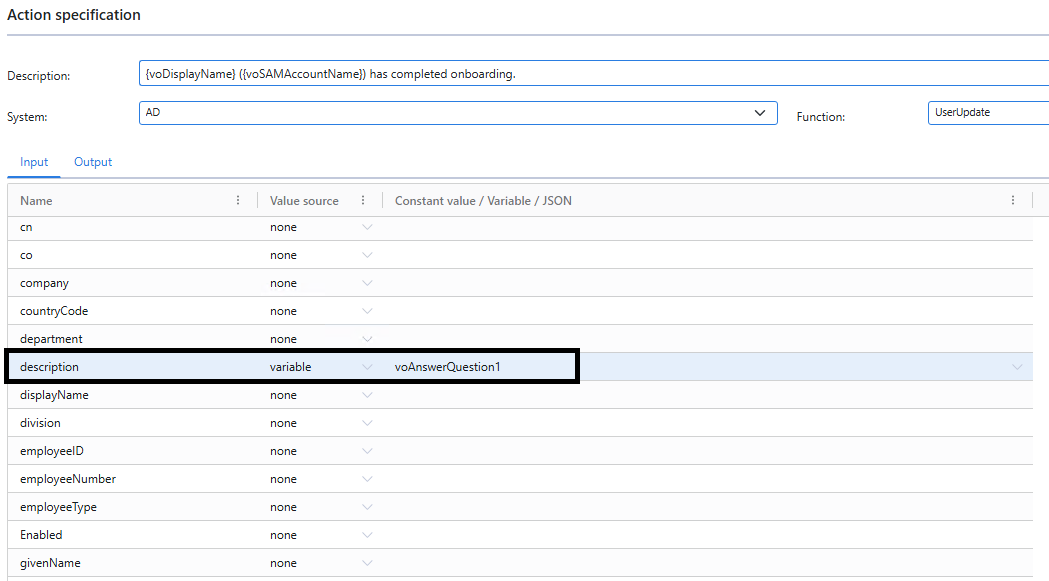
Click Save.
Now, when a user completes the onboarding process, their description in Active Directory will be set to the value the user provided during onboarding.