Onboarding with an OTP Code
The Onboarding App supports the ability to send OTPs (One-Time Passwords) via SMS/Email within the account claim process.
If you are not yet familiar with the onboarding process in NIM, please go through the Onboading Tutorial to understand how to set up an onboarding profile, and customize the account claim process.
To set up SMS and Email Codes you will need to have the following configured.
Source Data that includes a mobile phone number. The phone number will have to be prefixed with the country and area code as follows: +120633332344
The latest version of the Onboarding App. Click here to download from our github.
Ensure that the internal tables for onboarding are enabled. Click here to see our tutorial on setting up the onboarding table.
If using SMS, your NIM environment must be licensed for SMS. The SMS service is provided by Tools4ever, please reach out to Tools4ever Support.
To get started using an OTP code during onboarding, follow these steps:
Create an onboarding profile, or access an existing onboarding profile.
In your profile, make sure that your onboarding form contains a
method_selectandconfirm_secretcomponent. These components must take place prior to any component that executes the form's action. Use the screenshot below as a guide, making sure that your variables match what is shown.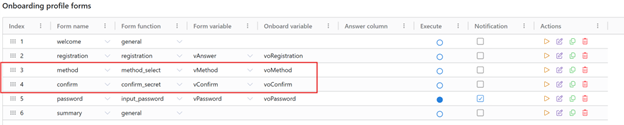
(Optional) Click on the Settings tab to adjust the configuration form confirmation codes. You can adjust the length of the code, the time limit to enter the code, and the maximum number of times the code may be sent.

Set up an SMS and Email notification that will send the OTP code to the end user.
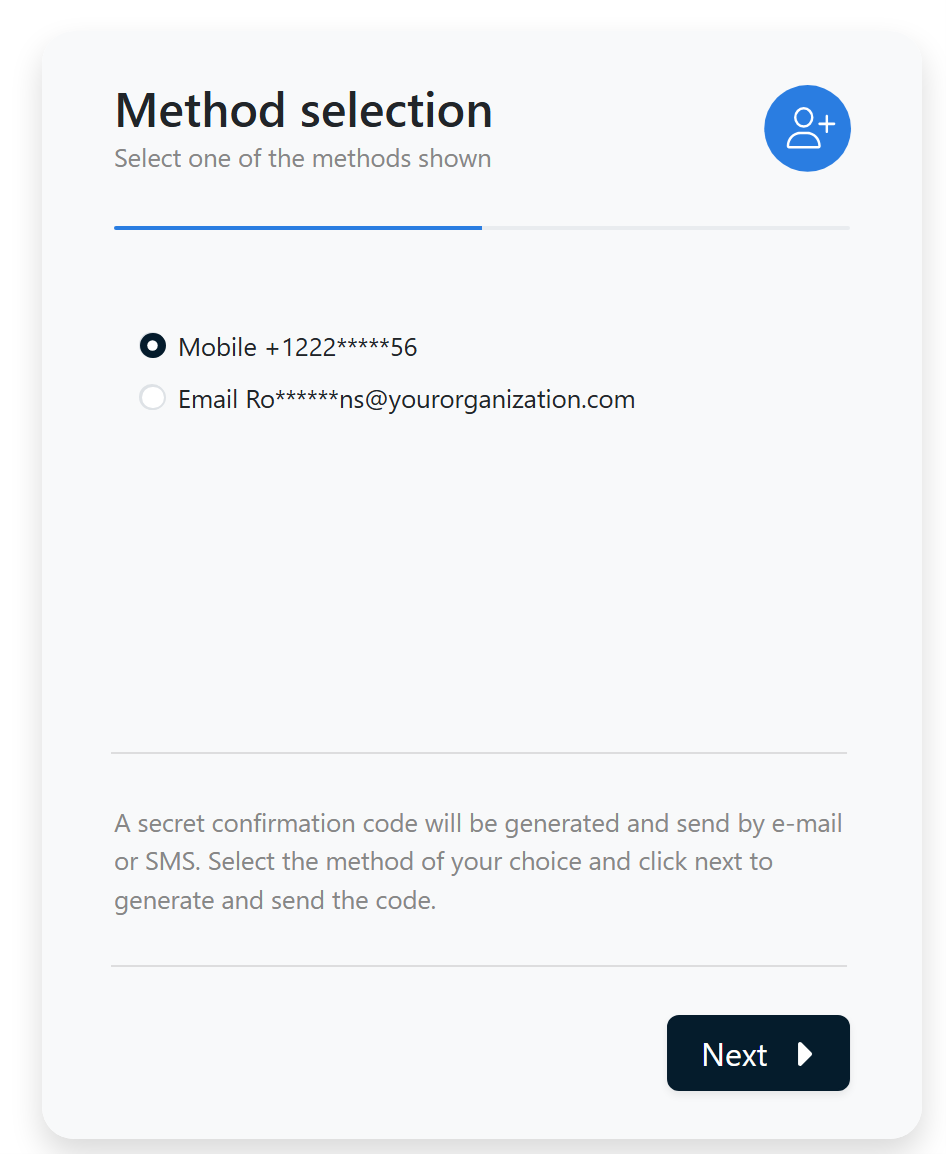
Now, when a user accesses the onboarding profile to claim their account, it will prompt them to select how they receive their OTP code. The code will be sent to them via the method they select.