PGP Encryption
NIM supports the use of PGP (Pretty Good Privacy) keys for use in both decrypting imported data and encrypting exported data. All public and private PGP keys are held in NIM's certificate repository.
For importing data, PGP keys can be used with NIM's CSV-File and CSV-File-SFTP connectors. In these connectors, the private portion of a PGP key is used to decrypt one or more CSV files that have been encrypted with the public portion of the same PGP key. The contents of those CSV files are then imported into NIM as plain text.
Public PGP keys can be used for encrypting files generated by the export and multi-export scheduled tasks. Those files can then be sent to a remote host, where they can be decrypted by the private portion of the same PGP key.
Important
The private portion of a PGP key is meant to be kept secure and in your possession only. Never transmit your private key to an outside party or through unsecure means such as FTP, HTTP file transfer, or email.
Generate a PGP Key
Follow the steps below to generate a PGP key inside of NIM. This key will then be held in the certificate repository, and will be usable for decryption and signing. Once the key has been created, you can follow the steps later on to export its public portion.
Navigate to Configuration > Settings > Certificates
Click Generate PGP key
Fill out the details on the following screen.
Certificate name: Provide any name that you wish. Ideally, it should describe what the certificate is used for.
Primary key algorithm: Choose which algorithm is used to generate the key.
Expiration (days/weeks/months/years): (Optional) Enter a value to set the key's expiration date. This is a number followed by the letter “y” for years, “m” for months, “w” for weeks, and “d” for days. E.g., “3w” would set an expiration date three weeks into the future.
User IDs: Enter the name and email address of the person or organization that owns the key.
Subkeys: (Optional) Add or remove subkeys, or set their expiration dates as you see fit.
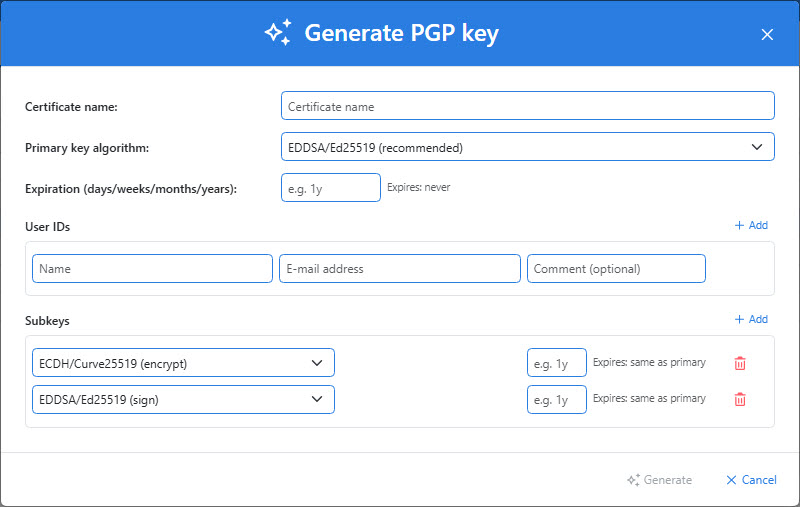
Click Generate. The new key will appear in the list.
Export a Public Key
In order for a third party to encrypt files that you can decrypt with NIM, they will need to have a copy of your public key. Follow these steps to export a copy of your public PGP key:
Navigate to Configuration > Settings > Certificates
Find the PGP key for which you want to export the public key.
Click on its
 button to export the public key. It will be downloaded by your browser automatically.
Once you have exported your public key, you can send it to a third party. That third party can use your public key to encrypt files that can only be decrypted with your private key.
Import a Public Key
In order for NIM to encrypt a CSV file, you will need to provide it with a public PGP key. This key is most often provided by the third party to whom you will be sending the encrypted file. To import a public PGP key into NIM, follow these steps:
Navigate to Configuration > Settings > Certificates
Click Add
Provide a descriptive name for the certificate, browse to its file location, and provide the certificate's password (if necessary). When done, click Add.
The new public key will be listed in the list of certificates, and will be available for use in the export and multi-export scheduled tasks.