Step 3: Configure Action Variables and Onboarding Actions
After a user has positively identified themselves, NIM must take their new password and apply it to their account. In order to do that, we must tell NIM where to find the user account identifier, and we must supply some additional data for logging purposes. This is all done through Action Variables and Onboarding Actions
Follow these instructions to configure an onboarding action.
Set Action Variables
Action variables allow NIM to retrieve data from the Question-answer filter that was set up earlier. The most important piece of data here is the unique identifier of the user's account(s) within the target system, such as ObjectGUID from Active Directory.
Within your onboarding profile, navigate to the Action Variables tab. In the Filter column list, you can see all of the columns being returned by the Question-answer filter that was configured earlier.
Important
If you do not see a column here that you need, you can update the filter to add any necessary columns and then and return here.
Click the
 button next to any field you wish to reference during the onboarding process. This will auto-generate and assign a variable to that field. For Active Directory, we recommend the following:
objectGUID- This will be used by NIM to target their account and complete the onboarding process.sAMAccountName- This will be used for logging and notifications.displayName- This will also be used for logging and notifications.
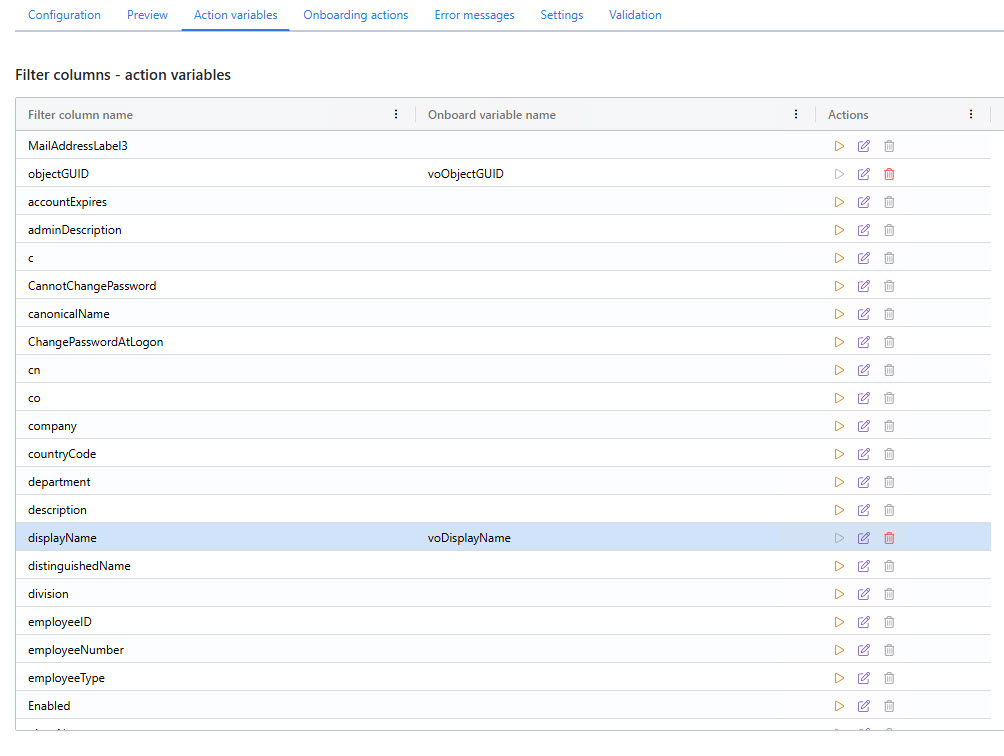
Click Save.
Configure Onboarding Actions
Onboarding actions are similar to mappings. They tell NIM what to do in a target system user completes the onboarding process. These actions are launched when a form with the Execute option selected is submitted. The actions then reference the action variables you configured in the previous steps. The data within these variables is then used to update the user's account(s) in target systems.
Each onboarding action is triggered one after another in a top-down fashion. These actions typically perform password reset operations in a target system, such as Active Directory or Google Workspace. However, any target system action is supported.
Follow the steps below to configure an onboarding action. In this case, we are setting the user's password in Active Directory.
Within the onboarding profile, navigate to the Onboarding Actions tab.
Click +Add to add a new action, and then select it.
In the Description field, enter
{voDisplayName} ({voSAMAccountName}) has completed onboarding.Note
If you changed the action variable names for
displayNameandsAMAccountName, you will have to update the variables here to match.In the System dropdown, select the Active Directory system.
In the Function dropdown, select
UserUpdate.Under the Input tab, set the following attributes:
objectGuid
Value source: variable
Value: voObjectGUID
accountPassword
Value source: variable
Value: voPassword
ChangePasswordAtLogon
Value source: constant
Value: false
Enabled
Value source: constant
Value: true
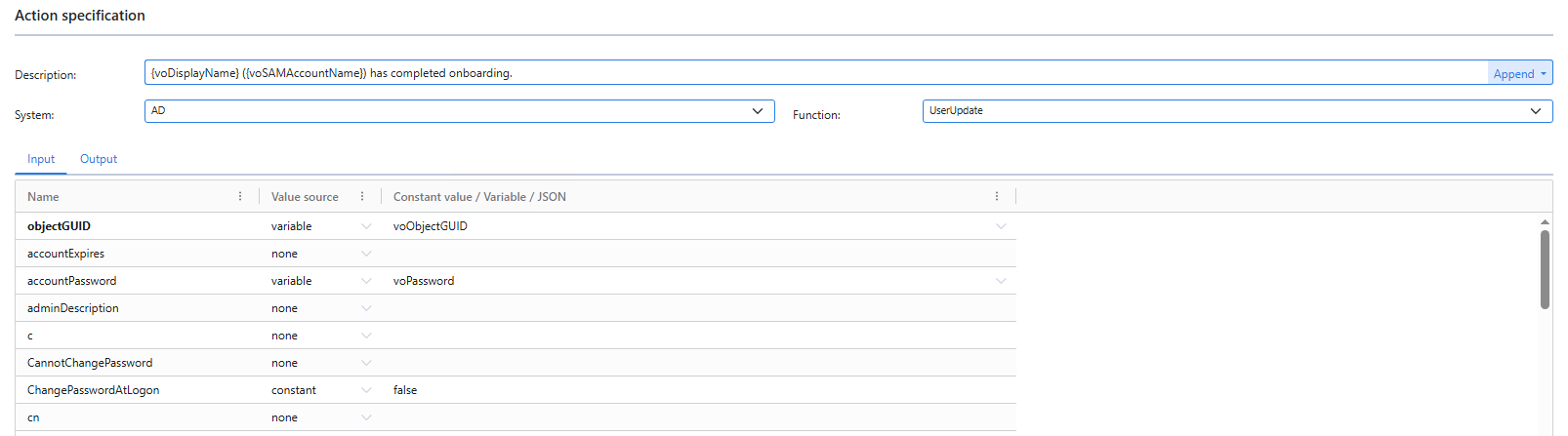
Click Save.
Next, you can configure end-user notifications.