Role Group Overrides
Organizations don’t always have authoritative HR data that accurately reflects the role a person is performing day‑to‑day. The Role Group Overrides app addresses that gap by allowing IT administrators to assign ad‑hoc roles—implemented as group memberships—directly to a user. These assignments can be tracked, monitored, and automatically expired, ensuring temporary or supplemental access stays controlled and auditable.
Intended Audience: IT
Target Scope: Managed Users
Required Systems: internal, any target system
Use Case Example
A department launches a cross‑functional project and needs several employees to take on temporary responsibilities outside their official HR‑defined roles. HR systems don’t reflect these project‑based duties, but the team requires access to specific applications and resources to perform the work.
Problem
Because the HR system doesn’t contain the project role information:
Automated provisioning cannot assign the correct access
IT must manually add users to groups
There is no built‑in mechanism to track who received temporary access
Access often remains long after the project ends, creating security and compliance risks
How the app solves it
The app allows IT to assign ad‑hoc roles (implemented as group memberships) directly to users, independent of HR data.
With this capability:
IT can add the project role immediately
Each assignment is tracked with metadata such as requester, purpose, and expiration date
The app automatically removes the role when it expires
Administrators can monitor all active ad‑hoc roles in one place
Outcome
Users receive the access they need without waiting for HR system updates
IT maintains full visibility and control over temporary roles
Access automatically expires, reducing risk and cleanup work
The organization gains a consistent, auditable process for non‑authoritative role assignments
Screenshots
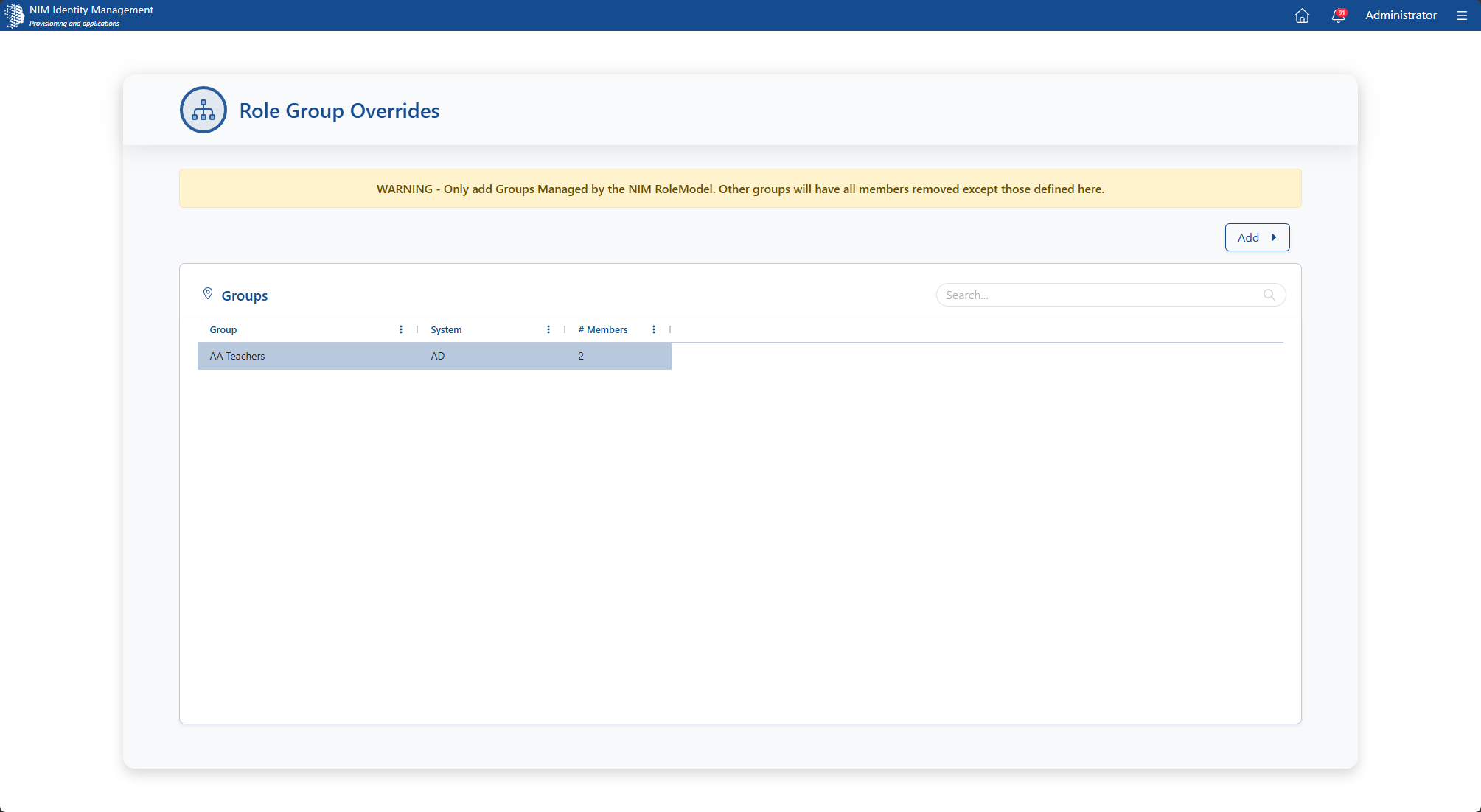
Main screen of the app. From here, you can view, add, and update role group overrides.
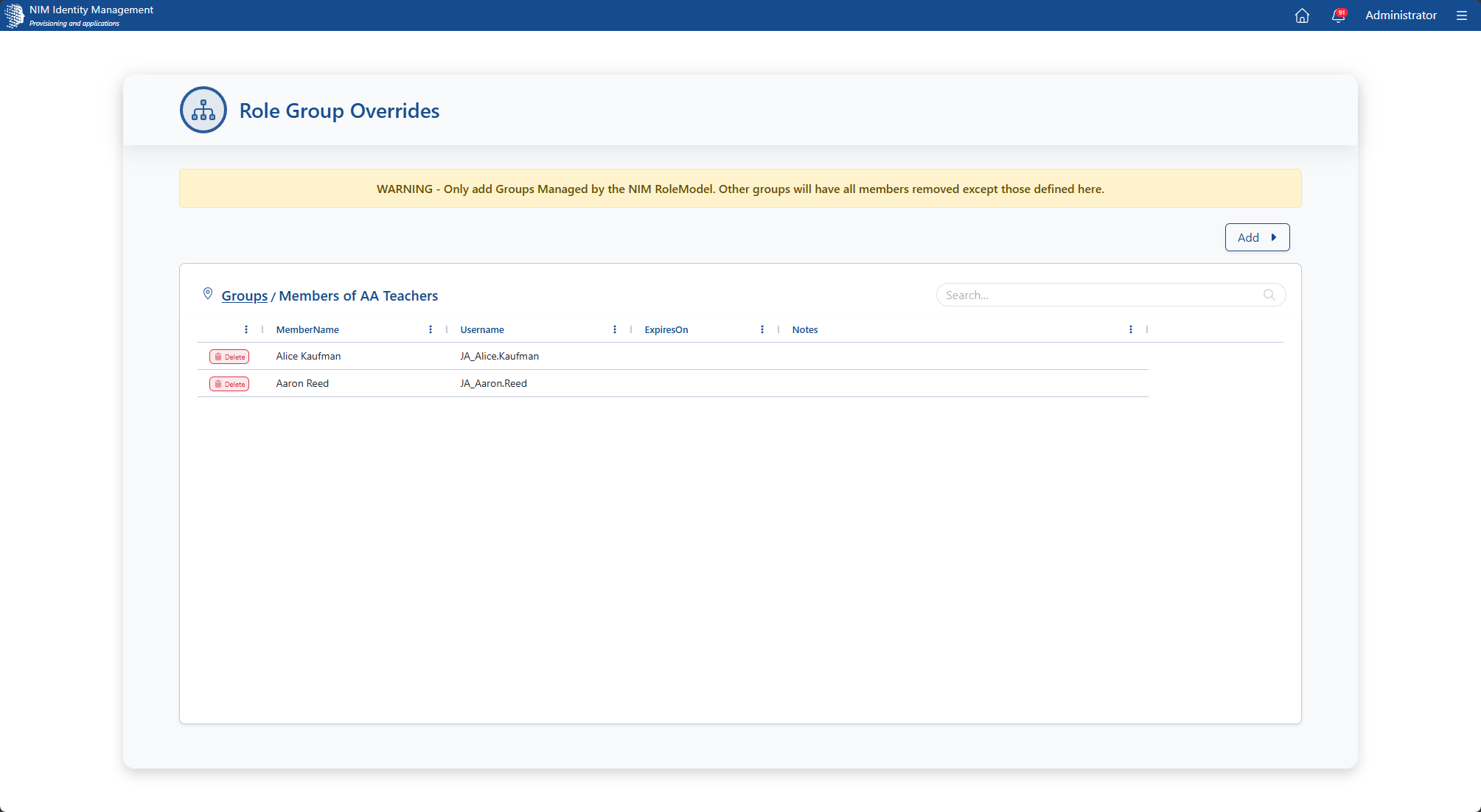
Members List screen. From here, you can view, add, and remove members of the override.
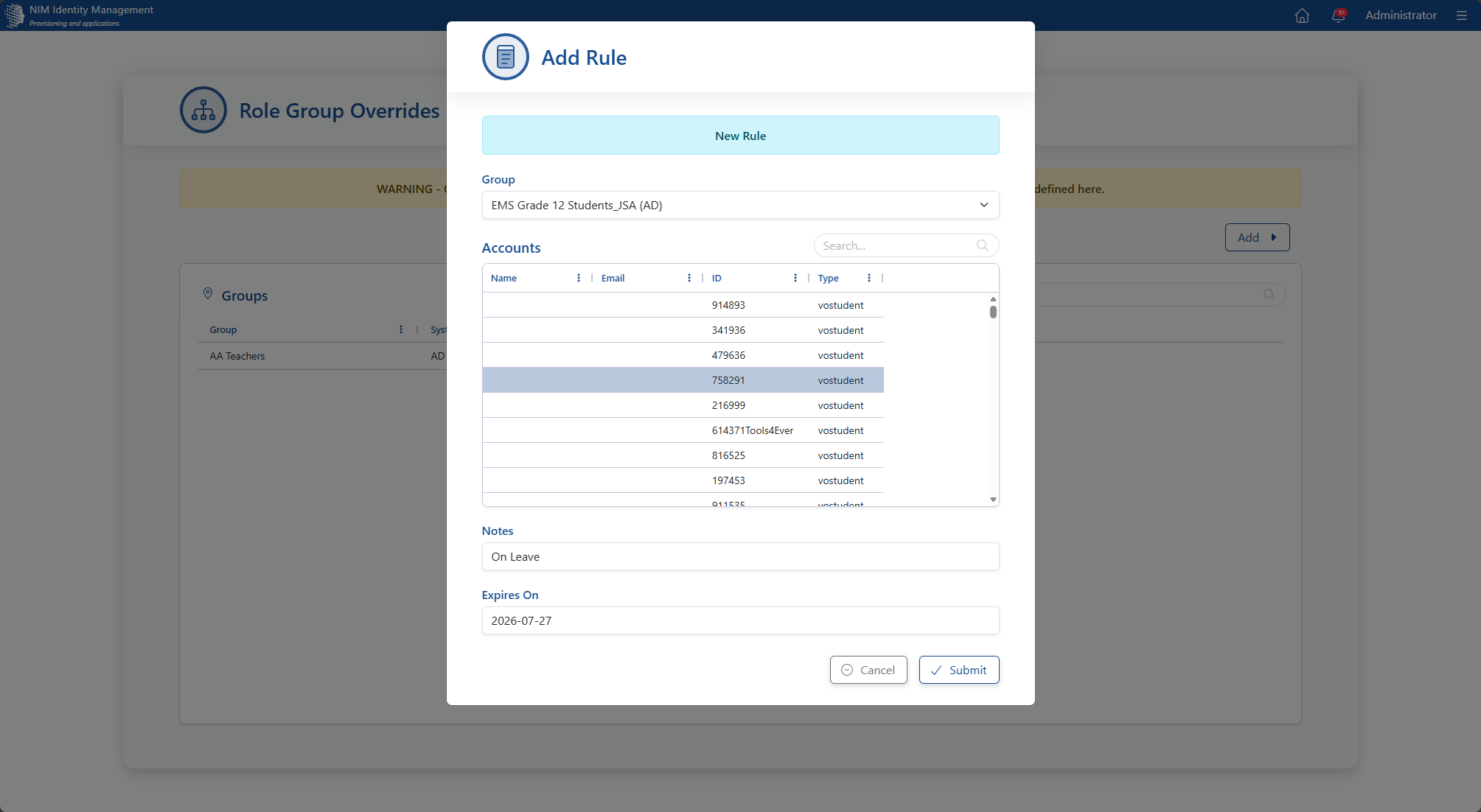
Member Selection screen. From here, you can select a user to be a part of the override. You can also provide a note and an expiration date, after which the overridden permission will be removed.